In short. On iPad, open Settings… from the ⓘ menu at the right of a model’s toolbar, or with the gear on the home screen. On a Mac, choose Qwartz → Settings… (⌘,). Settings apply to every model, as soon as you change them.
Settings hold the habits you set once. What a single model shows, such as the grid, the wireframe and snapping, is set in that model’s toolbar instead: see Quick views for View Settings and Snap and grid for Snap & Grid.
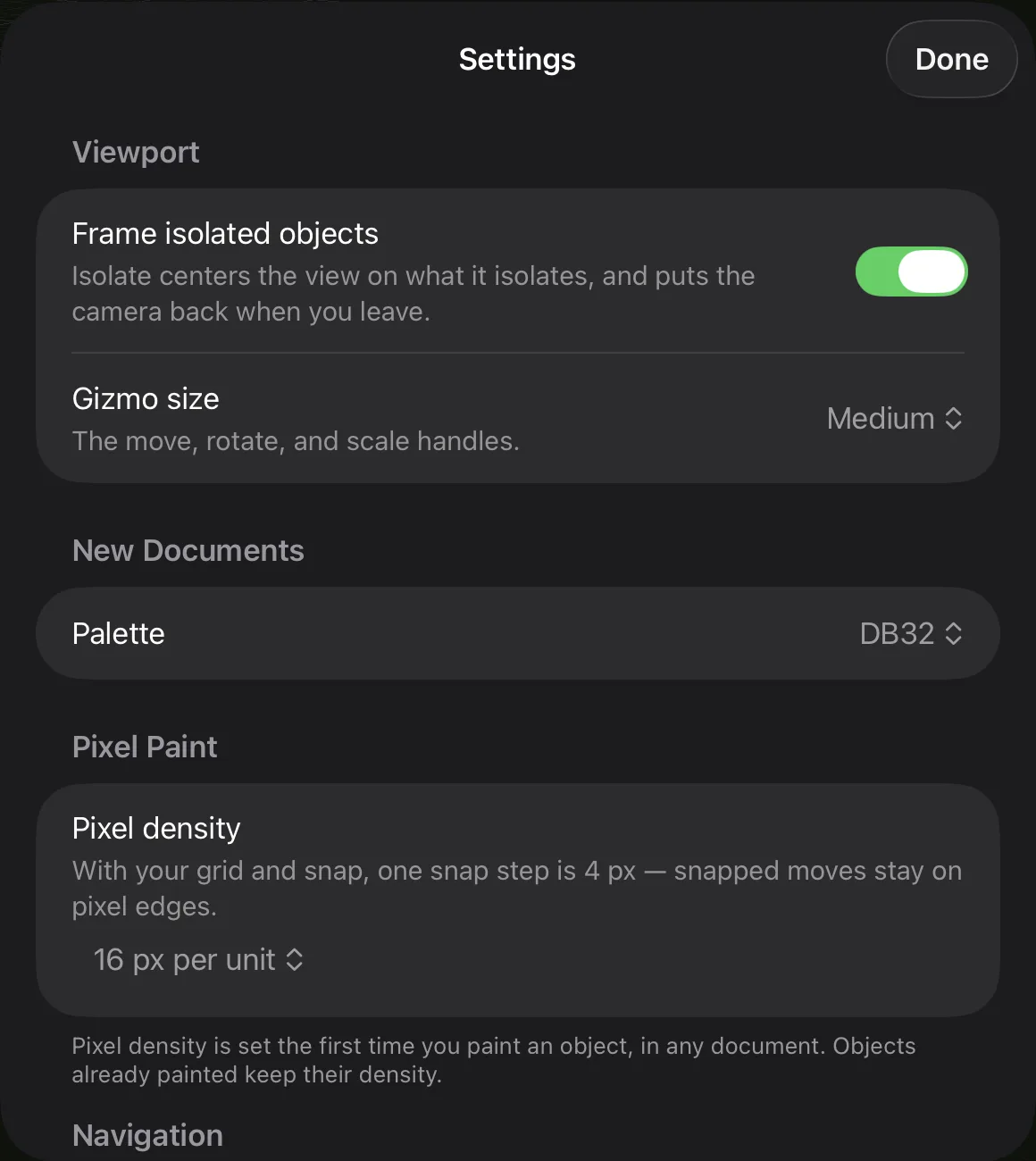
Viewport
- Frame isolated objects (on at first). When you isolate objects, the view centers on them, and the camera goes back where it was when you leave. Turn it off to keep the camera where it is.
- Gizmo size: Small, Medium (at first) or Large. The size of the move, rotate and scale handles. Small is three quarters of Medium, and Large is 1.4 times Medium. What you see is exactly what you can grab.
New Documents
- Palette: the palette a new model starts with, built-in or one of yours, with how many colors each has. DB32 at first. A model you already have keeps its own palette. See Palettes and colors.
Pixel Paint
- Pixel density: 8, 16 (at first), 32 or 64 px per unit, the size of the pixels when you paint. It’s set the first time you paint an object, in any model; objects already painted keep their density. Under it, Qwartz shows how many pixels one snap step covers with your grid: a whole number means snapped moves stay on pixel edges. See Pixel paint.
Navigation
- Orbit & pan speed: from 0.25× (the tortoise) to 3× (the hare). It changes how far the view turns or slides for the same drag, on iPad and Mac. Double-tap the slider (double-click on a Mac) to set it back to 1×.
- Trackpad scroll (Mac): what scrolling with two fingers on a trackpad does: Zoom (at first), Orbit or Pan. Whichever you choose, hold Command while you scroll to zoom, and Shift to swap orbit and pan. A mouse wheel always zooms.
- Invert zoom direction (Mac): turns the scroll zoom around.
See Orbit, pan and zoom for every way to move the camera.
Apple Pencil
These settings are on iPad only.
- Edit with finger (off at first). On, a finger does what the Pencil does: it selects, drags the handles and draws the marquee. To paint, touch and hold for a moment, then draw; a quick drag turns the view instead. Two fingers pan and a pinch zooms. See Apple Pencil and finger.
- Double-tap: what a double-tap on the Pencil does.
- Squeeze: what squeezing the Pencil does, when you let go. Squeeze needs Apple Pencil Pro.
Both offer the same choices, and act only in Paint and Tile Stamp, so a double-tap while modeling never changes a tool you can’t see:
| Choice | In Paint | In Tile Stamp |
|---|---|---|
| Use System Setting (at first) | Follows the double-tap or squeeze setting in iPadOS Settings, under Apple Pencil: switching to the eraser or to the last tool works as below, and showing the color palette swaps the two colors. Other system choices do nothing in Qwartz. | The same, without the color swap |
| Switch to Eraser | The eraser, and back to the tool you had | The tile eraser, and back |
| Switch to Previous Tool | The tool you used before this one | The same |
| Swap Colors | Swaps the two colors | Nothing |
| Eyedropper | The eyedropper | The tile eyedropper |
| Off | Nothing | Nothing |
Help
Help in the ⓘ menu on iPad, and Help → Qwartz Help (⌘?) on a Mac, open these pages. In Settings, the ? next to Navigation and Apple Pencil opens that part of this page. On a Mac, Help → Contact Us writes to us.
Something missing or unclear? Write to [email protected].