In short. Add a shape with + in the toolbar. Pick a selection mode (object, face, edge or vertex) and select part of the model: the action bar at the bottom shows the tools for that selection. Faces extrude, inset, subdivide and separate; edges bevel and take a loop cut; vertices bevel, merge and fill; objects combine, mirror and join. Every tool is one step of undo.
Modeling in Qwartz starts from a shape and changes it a step at a time: pull a face out, cut a loop, raise an edge. There’s no modifier stack and nothing to apply: each tool changes the mesh, and Undo takes it back.
On iPad, the Apple Pencil selects and uses the tools, and your finger turns the view. On a Mac, everything is a click or a drag. How to move around and select is in Getting around and Select and transform; this page is about what you do with a selection.
Add a shape
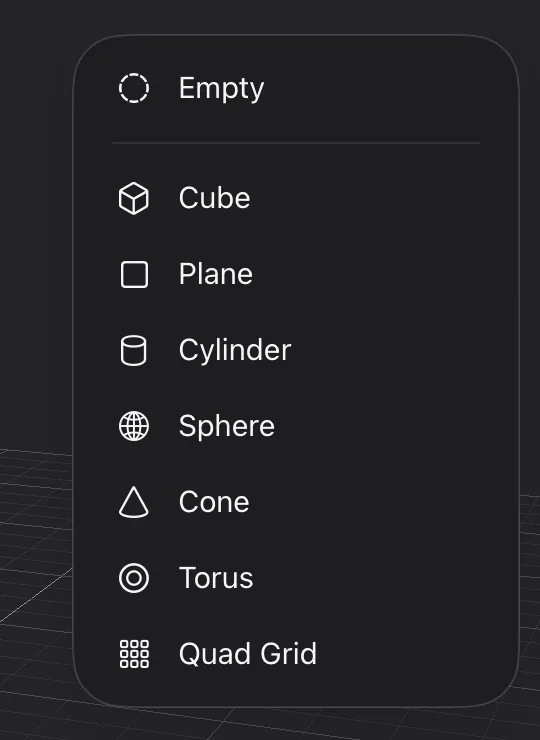
Press + in the toolbar and choose a shape. It appears at the middle of the scene, selected, named after the shape (Cube, then Cube.1, Cube.2…).
| Shape | What you get |
|---|---|
| Cube | 1 unit on each side, six square faces |
| Plane | one square face, 1 unit across, lying flat |
| Cylinder | 1 unit tall, 1 across, 16 sides |
| Sphere | 1 unit across, 16 segments around and 8 from top to bottom |
| Cone | 1 unit tall, 1 across, 16 sides |
| Torus | a ring 1.4 units across, 16 segments around and 8 across |
| Quad Grid | 8 × 8 squares of 1 unit, lying flat: a floor to build on or stamp tiles on |
| Empty | no mesh: a point to group other objects under in the outliner |
Shapes have no settings: you shape them afterwards, with the tools below. One unit is one square of the floor grid.
The action bar
The action bar sits at the bottom of the view. It shows only the tools that work on what’s selected, so it changes with the selection mode:
| Mode | Tools |
|---|---|
| Object | Isolate, Combine, Mirror (one object) or Join (2 objects or more), Duplicate, Hide, Delete |
| Face | Extrude, Inset, Bevel, Subdivide, Flip, Separate, Delete, Hide, Unhide (while faces are hidden) |
| Edge | Extrude, Bevel, Slide, Loop Cut, Fill (3 edges or more), Dissolve |
| Vertex | Bevel, Slide, Merge (2 vertices or more), Fill (3 or more), Delete |
When the selection carries a texture (pixel paint, tiles, or an image with UVs), Flip H and Flip V join the object and face tools. Every tool works on the whole selection at once, and each one is a single step of undo.
Build a house from a cube
Four tools make a cube into a house:
- Select the cube and choose Edge mode.
- Pick the top front edge and press Loop Cut. A loop of new edges runs around the cube, across the middle of that edge.
- Pick the new edge on top, choose Move in the tool strip, and drag its up arrow. The top folds into a roof.
- Choose Face mode, pick a side wall and press Extrude: the wall comes out and makes a wing.
- Pick the wing’s front face, press Inset, then Extrude: a porch.
Extrude
Extrude pulls the selected faces out along the way they face and builds walls around them. Select several faces next to each other and they come out as one block, with walls only around its outside edge.
The new faces stay selected, so you can carry on: extrude again, or move them with the Move tool to make them longer or shorter. Extrude always goes outward; to dig in, extrude and then move the faces back the other way.
How far. Extrude goes 0.5 units unless you change it. The depth is in Snap & Grid, the grid button in the toolbar, under Extrude. While snapping is on, the depth is rounded to a whole number of snap steps, so the new faces land on the grid.
Edges. In Edge mode, Extrude works on edges on the open border of a mesh (the outline of a plane or a quad grid, say): each one grows a new face, flat, outward, the same depth away. Edges between two faces are left as they are. On a Mac, E does the same.
Inset
Inset makes a smaller face inside each selected face, with a ring of faces around it: each corner moves a fifth of the way toward the middle. Faces selected together inset as one area, so the edges they share don’t get a border.
Inset then Extrude is the classic pair: a panel on a crate, a window frame, a chimney on a roof.
Subdivide
Subdivide cuts each selected face into four: a square into four squares, a triangle into four triangles. Faces next to each other share the new points along their common edges, so the mesh stays in one piece. Painted pixels, tiles and UVs are split with the face, so the face looks the same afterwards.
Subdivide works on faces with three or four sides; others are left as they are.
Loop cut and slide
Loop Cut adds a ring of edges across the strip of four-sided faces that the selected edge belongs to, through the middle of each face. Select one edge in Edge mode and press Loop Cut. The cut runs at right angles to that edge, all the way round, and stops where it meets a face that doesn’t have four sides.
Slide moves vertices and edges along the mesh rather than through space, so the shape doesn’t change while the edges move:
- Select vertices or edges. To take a whole loop, double-tap one of its edges (double-click on a Mac).
- Choose Slide in the tool strip on the left (on a Mac, press V). Handles appear on the selection.
- Drag a handle. A vertex moves along whichever of its edges points the way you drag. An edge moves across its faces, toward one neighbor or the other.
On iPad, Slide in the action bar turns on the same tool and lights up while it’s on: drag a handle, then press Slide again to leave the tool. On a Mac, Slide in the action bar starts a slide without a handle: move the mouse, click to keep the result, or press Esc to put everything back.
Bevel
Bevel takes off a sharp edge or corner and puts a slanted face, or a rounded strip, in its place: the soft edge of a crate, a worn step, a rounded tabletop.
- In Edge mode, each selected edge becomes a strip along it, set back by the width on the faces on both sides. Where bevelled edges meet, the strips join, and a corner piece closes the gap between them.
- In Face mode, the outline of the selected faces is bevelled: their outer edges, as if you had picked them in Edge mode. One face bevels all around; a block of faces bevels along its rim only.
- In Vertex mode, each selected vertex is cut off: a new face takes its place, the width away along each of its edges.
Width and segments. The width is how far the bevel reaches into the faces around it. With one segment the bevel is flat; more segments round it, a quarter of a circle across. The width stops before a face would fold over itself: at the shortest edge the bevel runs along, or half of it when both ends of that edge are bevelled.
On iPad, press Bevel in the action bar. The bevel is made at once and a panel above the action bar adjusts it: drag Width, press + and − for Segments, then press Done or tap the view.
On a Mac, press Bevel or Control-B, then move the pointer: away from the selection widens the bevel, toward it narrows it. Scroll, or press + and −, to change the segments. Click to keep the bevel, or press Esc to put everything back.
A bevel starts at the width and segments you used last (0.1 and one segment the first time). While snapping is on, the width moves one pixel at a time at the object’s pixel density: 0.0625 at 16 pixels per unit, so a bevel lines up with the pixels you paint, and 0.1 rounds to 0.125. Faces keep their material, painted pixels and UVs, and the new faces take those of the faces next to them. However long you adjust it, a bevel is one step of undo.
An edge on the open border of a mesh (the outline of a plane, say) has a face on one side only: it bevels into that face.
Combine shapes
Combine joins shapes, cuts one out of another, or keeps what they share. It works on whole objects, in Object mode, and on closed shapes only: a cube, a cylinder, a sphere, or anything you’ve built that has no holes in its surface.
Cut a hole with one shape. Select one object, the shape that cuts, and press Combine. It cuts itself out of every visible object it touches, and then it’s gone. For a round window: add a cylinder, turn it and move it through the wall, then press Combine. One cylinder can go through a wall and a floor at once. Hidden objects, locked ones and anything outside Isolate are left alone.
Combine two or more objects. Select the object to keep first, then the others, and press Combine: they join into the first one.
Either way, a panel above the action bar switches what Combine does, and the view shows the result as you switch:
- Subtract cuts the other shapes out (the first choice with one object selected);
- Union joins them into one (the first choice with two or more). One shape joins only the first object it touches, and the panel says so;
- Intersect keeps only the part they share.
With two or more objects, Swap changes which one is kept; with three or more, each press moves on to the next. Press Done to keep the result, or Cancel to put everything back. On a Mac, Return is Done and Esc is Cancel. However long you try things, Combine is one step of undo, and undo brings back the shapes it used up.
The faces keep their material, painted pixels and UVs, and the cut faces take those of the shape that cut them. Tiles on a cut face stay as an image with UVs; their decals are removed, and the panel says so.
When it can’t. The panel says why, naming the object: an open shape such as a plane (“Plane is open: booleans need closed shapes.”), a locked object, faces turned inside out, or shapes that don’t overlap. With one shape cutting several objects, an object it can’t cut is skipped and named, and the others are still cut.
Mirror
Mirror makes an object symmetrical: it keeps one half and rebuilds the other half as its reflection. Build one side of a character, a vehicle or a chair, mirror it, and the other side matches.
Select one object in Object mode and press Mirror. The object is mirrored at once, and a panel above the action bar adjusts it:
- X, Y or Z is the axis it’s mirrored across. The mirror runs through the object’s origin, along the object’s own axes, so a turned object mirrors the way it’s turned. To mirror across another place, set the origin there first.
- Keep +X side says which half is kept. Press it to keep the other half (Keep −X side).
Press Done to keep the result, or Cancel to put the object back. On iPad, a tap in the view is Done too; on a Mac, Return is Done and Esc is Cancel. However long you try things, Mirror is one step of undo.
The other half follows. Mirror is done once; it doesn’t stay on the object. To change both sides, edit one side, then press Mirror again: the other half is rebuilt from the side you edited. Mirror starts on the axis and side you used last, so the side you just edited is the one kept.
Where the halves meet, they’re joined with no gap. A flat face that crossed the middle comes back whole, with no seam down it. A face with painted pixels, UVs or tiles stays in two halves there, so what’s on it stays exactly as it was. Painted pixels are mirrored, and so are UVs and tiles; a face cut in two keeps its pixels and UVs but loses its tiles. When nothing of the object is on the side you keep (a plane mirrored across its own flat side, say), the panel says “Nothing on that side to keep.” and the object stays as it was.
Set the origin
Every object has an origin: the point it turns and scales about, shown as a small blue ring when the object is selected, where the Move, Rotate and Scale gizmo stands. Mirror reflects across it too. Set Origin moves the origin without moving the object: the shape, its paint, UVs and tiles stay exactly where they are.
- In Object mode, open Set Origin in the Inspector, under Apply Transform, and choose Center of Geometry (the middle of the object), Bottom Center (the middle of its base, for a prop that stands on the floor) or World Origin (the scene’s 0, 0, 0). With several objects selected, each one gets its own.
- In Face, Edge or Vertex mode, select part of the object and press Set Origin to Selection in the Inspector: the origin goes to the middle of what’s selected, where the gizmo stands.
To mirror a wing from its root, say: select the faces at the root in Face mode, press Set Origin to Selection, then Mirror in Object mode. Objects grouped under the one you change stay where they are. Set Origin is one step of undo, and a locked object can’t take a new origin until it’s unlocked.
Separate and join
Separate makes the selected faces into a new object. In Face mode, select the faces and press Separate (on a Mac, Shift-P). The faces leave the object and become an object of their own, in exactly the same place, named after it (Cube.1). Qwartz switches to Object mode with the new object selected, ready to move. At least one face has to stay behind: with every face selected, Separate says so.
Join makes several objects into one. In Object mode, select the object to keep first, then the others, and press Join (on a Mac, Command-J). Their faces move into the first object without moving in the scene, the others are gone, and the object kept stays selected. Objects grouped under the ones that went move under the one kept, in the same place.
Join doesn’t weld anything: the pieces are in one object now, but each stays a piece of its own. To melt shapes that overlap into one solid, use Combine’s Union.
Either way, faces keep their material, painted pixels, UVs and tiles, and each is one step of undo. A locked object can’t be separated, joined or mirrored: unlock it in the outliner first.
Merge, fill, delete and dissolve
Merge (Vertex mode, two vertices or more) moves the selected vertices to their middle and makes them one. Faces that collapse to nothing go away.
Fill makes a new face from the selection: three vertices or more in Vertex mode, or edges that go all the way round a hole in Edge mode. It’s how you close a hole after deleting a face, or bridge a gap. The new face is turned to match the faces around it.
Delete removes what’s selected:
- in Face mode, the faces (the vertices only they used go with them);
- in Vertex mode, the vertices and every face that uses them;
- in Object mode, the objects.
Dissolve (Edge mode) removes the selected edges and joins the two faces on each side into one bigger face, so the surface stays closed. An edge on the open border of a mesh has only one face: dissolving it removes that face.
Flip normals
Each face has a front, and Flip (Face mode) turns the selected faces around. The front is the side Extrude pulls toward, and the side most game engines draw: a face that points inward shows up as a hole once it’s exported. Flip a face when it was built the wrong way round, after Fill, for example.
Duplicate
In Object mode, Duplicate copies the selected objects, with their paint and tiles. The copies sit exactly over the originals and are selected, so move them away right after: choose Move and drag. On a Mac, the shortcut is Command-D.
Hide and unhide
Hide takes the selected faces (in Face mode) or objects (in Object mode) out of the view, so you can reach what’s behind them. Hidden faces and objects stay in the model, but they’re left out when you export: unhide them first if they belong in the file. The Export sheet reminds you when something is hidden, with Unhide All.
In Face mode, while faces are hidden, an Unhide button appears next to Hide, with a badge that counts them. Press it to bring them all back. Hidden objects come back from their eye in the outliner. On a Mac, H hides and Option-H unhides.
Flip a texture
Flip H and Flip V mirror what’s painted or stamped on the selected faces, left to right or top to bottom, as you see it on screen. They show up when the selection carries something to flip: pixel paint, tiles, or an image on four-sided faces with UVs. In Object mode they flip every face of the object.
Shortcuts on a Mac
| Key | What it does |
|---|---|
| E | Extrude (faces), or extrude border edges (Edge mode) |
| I | Inset |
| Control-B | Bevel (faces, edges or vertices) |
| Control-R | Loop Cut |
| V | Slide tool, on and off |
| G, R, S | Move, Rotate, Scale |
| Delete | Delete, or Dissolve in Edge mode |
| Shift-N | Flip normals |
| Command-D | Duplicate |
| Shift-P | Separate the selected faces |
| Command-J | Join the selected objects into the first selected |
| H, Option-H | Hide, Unhide All |
| F | Frame the selection |
| Command-Z, Shift-Command-Z | Undo, Redo |
Subdivide, Merge, Fill, Combine and Mirror have no key: use the action bar. Every key is in Mac keyboard shortcuts.